
This article provides the user experience when reporting an email using Phriendly Phishing Phish Reporter for the first time.
- Locate the Phriendly Phishing Phish Report button and click on the email to report that email.
Check Phish Reporter button in the ribbon view.
OR you can also view in the Add in section - Click on the report button.
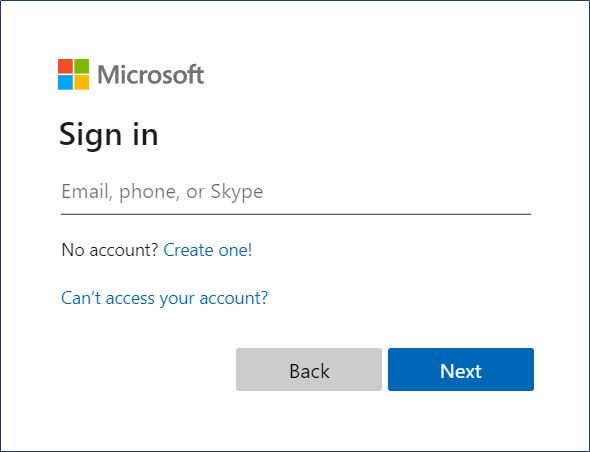
- Select the options below when reporting an email for the first time. For the next succeeding instances of reporting an email, user is no longer asked to log in nor enter the MS credentials.
The Phish Reporter will ask for permissions – Click ‘Accept’.
Note : Your global administrator may have accepted these on behalf of your organisations so you may not see this prompt. After reporting the email, a confirmation pop-up notification will appear to confirm that the email has been reported based on the type of email that was report. (Training, Simulated Phishing, Safe or Other)
Click OK.This is an example of reporting an 'other' email.
(The message may differ from this screenshot based on changes from your organisation)
Congratuations
You have successfully authenticated the Phish Reporter and reported a phishing email.
Comments
Article is closed for comments.