
You can create a new phishing email template or modify an existing one to assist with education to your employees regarding Monthly Phishing Campaigns.
Create a Campaign Phishing Template
- Go to the Email Templates tab on the left-hand side of the portal, select Templates > New Template > Campaign Phishing.
- Choose to Upload a file or Create From Blank Template.
- Edit the Template Title, From, Subject, Attach file (optional), Description (optional) and craft your message with the editor via Visual, HTML, or Plain Text.
-
Microlesson - Select the phishing microlesson content related to this email template for learners to be trained on if they click on a link. For more details, please visit Customisable Microlessons – Phriendly Phishing.
-
Share the template to your zone (Share Template) by ticking the box. Proceed to Step 6 to further customise your template by using the menu on the right-hand side of the screen.
-
Optional Steps
-
Type - Type of email template you would like to create.
-
QR Code - This is a method used to test staff into scanning a QR code. For more details, please visit Email Template : Add a QR Code – Phriendly Phishing.
-
Credential Capture - This is a method used to steal account names and passwords.For more details, please visit Email Template : Add a Credential Capture – Phriendly Phishing.
-
Microlesson - Select the phishing micro lesson content related to this email template for learners to be trained on if they click on a link. For more details, please visit Customisable Microlessons – Phriendly Phishing.
-
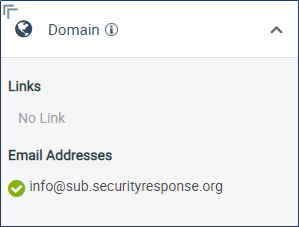
Domain - Here you can see all links and emails used in your template.
-
Personalise - Personalise this template with any property that exists on a contact record (e.g. name or email)
-
Schedule - This allows you to set a time period for when this template can be randomly selected to be sent out.
-
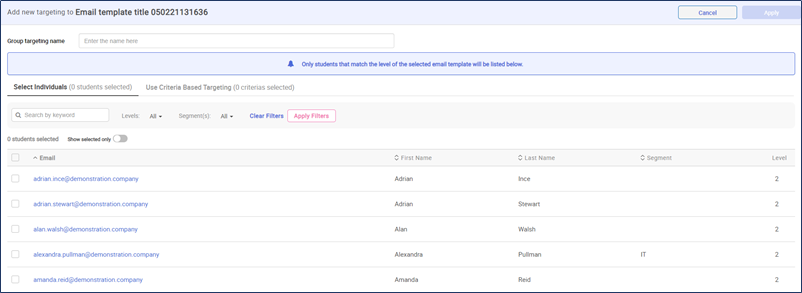
Target - This allows you to select certain individuals to be able to randomly receive this template. Note : If you upload segments you can target your email templates by this criteria.
-
Type - Type of email template you would like to create.
Congratulations ! You've created a new Campaign email template, you can now schedule your Campaign Phishing block.
Comments
Please sign in to leave a comment.