
The Phish Reporter app is available in Google Workspace for reporting phishing emails. This guide takes you through the user experience when reporting an email or how to report a suspicious email in a Google Workspace environment.
Report a Phishing email from PC or Laptop
- When you log into your Google Workspace mail account, you should automatically see the Phriendly Phishing Phish button in the app list on the right-hand side.
- If it is not open already, select the Show side panel in the bottom right corner.
- Open the email you would like to report in your and click the Phish Reporter icon.
Pop-up notification appears asking you to confirm. Click OK.
Reported email goes to Trash folder.- You will receive a confirmation on the reported email. The message on the pop-up notification depends on the email reported. Select 'OK' to be taken back to the Phish Reporter menu.
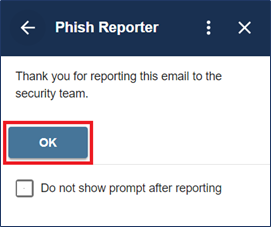 or
or 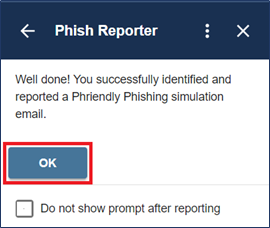
Report a Phishing email from a Mobile device
- Select the email you would like to report in your inbox.
- Scroll down to see your 'Available add-ons'. Select the Phriendly Phishing Icon.
- This will bring up the Phish Reporter options to report the email.
Pop-up notification appears asking you to confirm. Click OK.
Reported email goes to Trash folder.
- You will receive a confirmation on the reported email. The message on the pop-up notification depends on the email reported. Select 'OK' to be taken back to the Phish Reporter menu. or
Congratulations ! You have now successfully reported an email! Repeat this process for any other suspicious-looking emails.
Comments
Article is closed for comments.